 QR Anything by Avex
QR scanner for Android: camera or gallery
Read a printed QR or a code already saved on your phone with QR Anything by Avex. Inspect the decoded result before opening a destination.
Download QR Anything on Google Play
Scan a printed QR
- Open Scanner in QR Anything.
- Allow camera access if Android asks and you want to use camera scanning.
- Keep the full code and its clear border inside the view. Adjust distance and lighting until it is recognized.
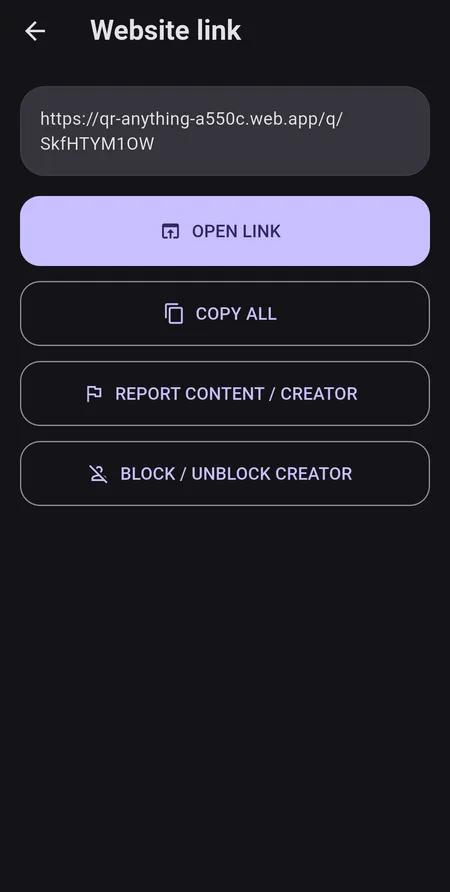
- Read the result, then use the available action if it matches what you expect.
Scan a QR from a screenshot or photo
You do not need another screen. Open Scanner and choose Scan from gallery. Select the saved image using Android's picker, then review the result.
Follow the complete screenshot-scanning walkthrough, including what to do when an image is cropped or blurry.
If a QR will not scan
- Camera unavailable: review Android's camera permission for the app, or choose a saved image using the gallery option.
- Cropped screenshot: use the original image with all four edges and a clear border.
- Small or blurred code: ask for the original image or a higher-resolution copy.
- Result opens an unavailable page: decoding may have worked even if the website or hosted content is no longer available.
Check the result before opening a link
A preview helps you read an address; it does not certify a website as safe. Do not enter credentials or payment information simply because a link came from a QR.
Saved QR codes are different from scan history
My QR stores codes you create. QR Anything does not keep a scan-history log. Basic scanning does not require an app account.