 QR Anything by Avex
How to scan a QR code from a screenshot on Android
If the QR is already on your phone, use an image scanner. QR Anything can decode a saved screenshot or photo through its gallery option.
1. Save an image that includes the whole code
Use the original image when possible. Keep all four edges and the plain border around the QR. A heavily compressed preview or a cropped corner can stop it decoding.
2. Open the gallery scanner
In QR Anything, open Scanner and tap the image button labelled Scan from gallery. Android opens a picker so you can choose the screenshot or photo. Select the file and let the app inspect it.
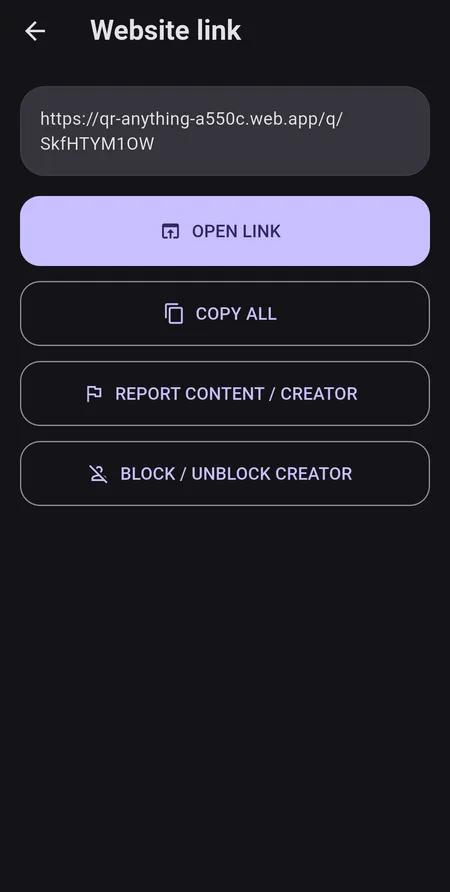
3. Read the decoded result
A website result shows an address before you open it. Check the hostname and whether the destination fits the reason you received the code. A successful decode does not establish that the destination is trustworthy.
If nothing is recognized
- Try the original saved image rather than a screenshot of a small preview.
- Check that the code is not cut off, blurred or hidden behind a sticker.
- If several codes appear, use a clear image of the intended code while keeping its full border.
- Ask the sender for a larger or cleaner original if the image is too small.
If the code reads but the page will not open
Check your connection. A static website link still needs the destination server. A hosted editable QR can become unavailable if it is disabled, deleted or restricted. A page error is different from a failure to read the image.
Camera permission and saved images
The gallery option is useful when the camera is unavailable. Android's picker provides the selected image. Basic scanning does not require a QR Anything account, and the app does not keep a scan-history log.
Download QR Anything on Google Play
Camera and gallery scanner overview · Create a QR code · All guides